7.Chart of Accounts
Review, adjust, and expand your accounts in one place. Use the AI toolbar when you need new codes fast.
Watch the walkthrough
Prefer the link? Open on YouTube.
1. What this page is for
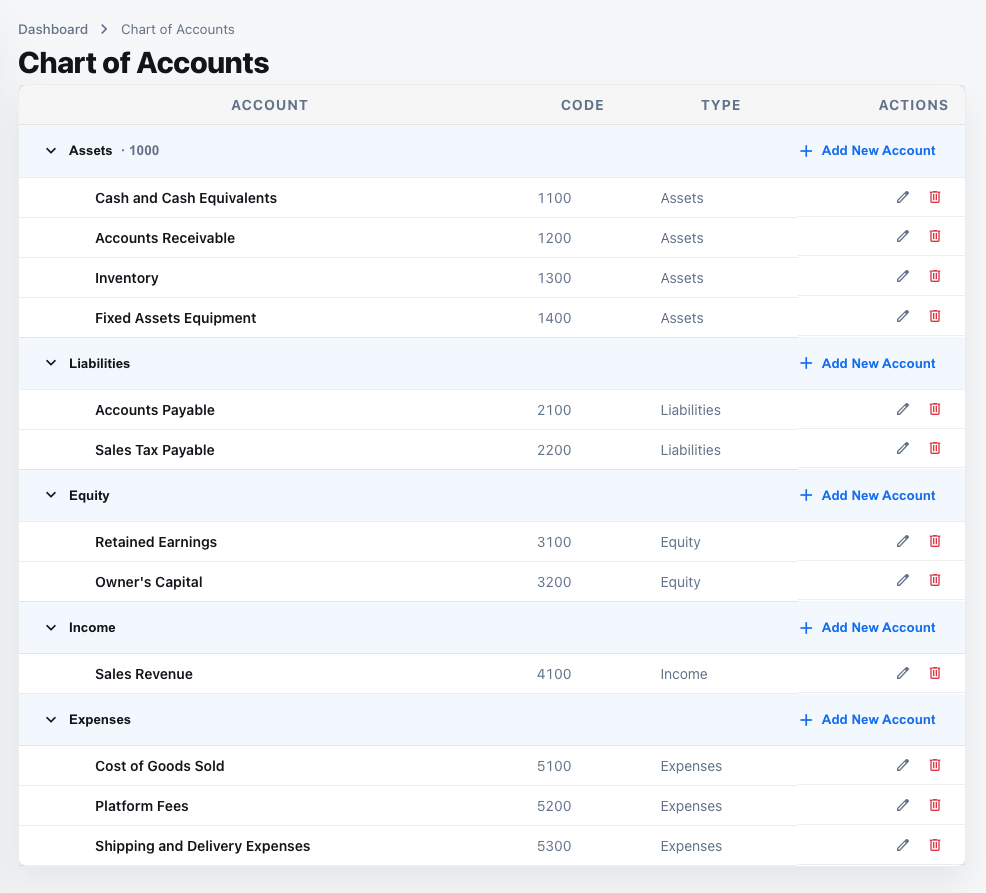
- Central place to see every account, its code, statement type, and category.
- Quick search and filters help you find the right account before posting entries; balances aren’t shown here (use Accounts Transactions).
2. List view and filters
- Search by code or name; filter by Balance Sheet or P&L categories (assets, liabilities, income, expenses).
- Columns show code, name, statement type, and category.
3. Edit an account
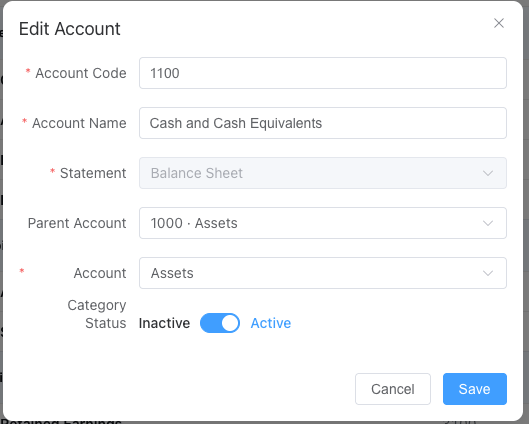
- Use the edit action to change name, statement type, category, or parent.
- Adjust the code if needed (keeping gap numbering), and mark tags like “mandatory” or “internal only.”
- Changes reflect immediately in journal entry suggestions.
4. Add or remove accounts
- “Add Account” opens a form for code, name, statement type, and parent.
- Removal is allowed only when the account has no blocking entries; reconcile or move balances first.
- New accounts follow the gap rules; AI may suggest the next available code.
5. AI recommendations
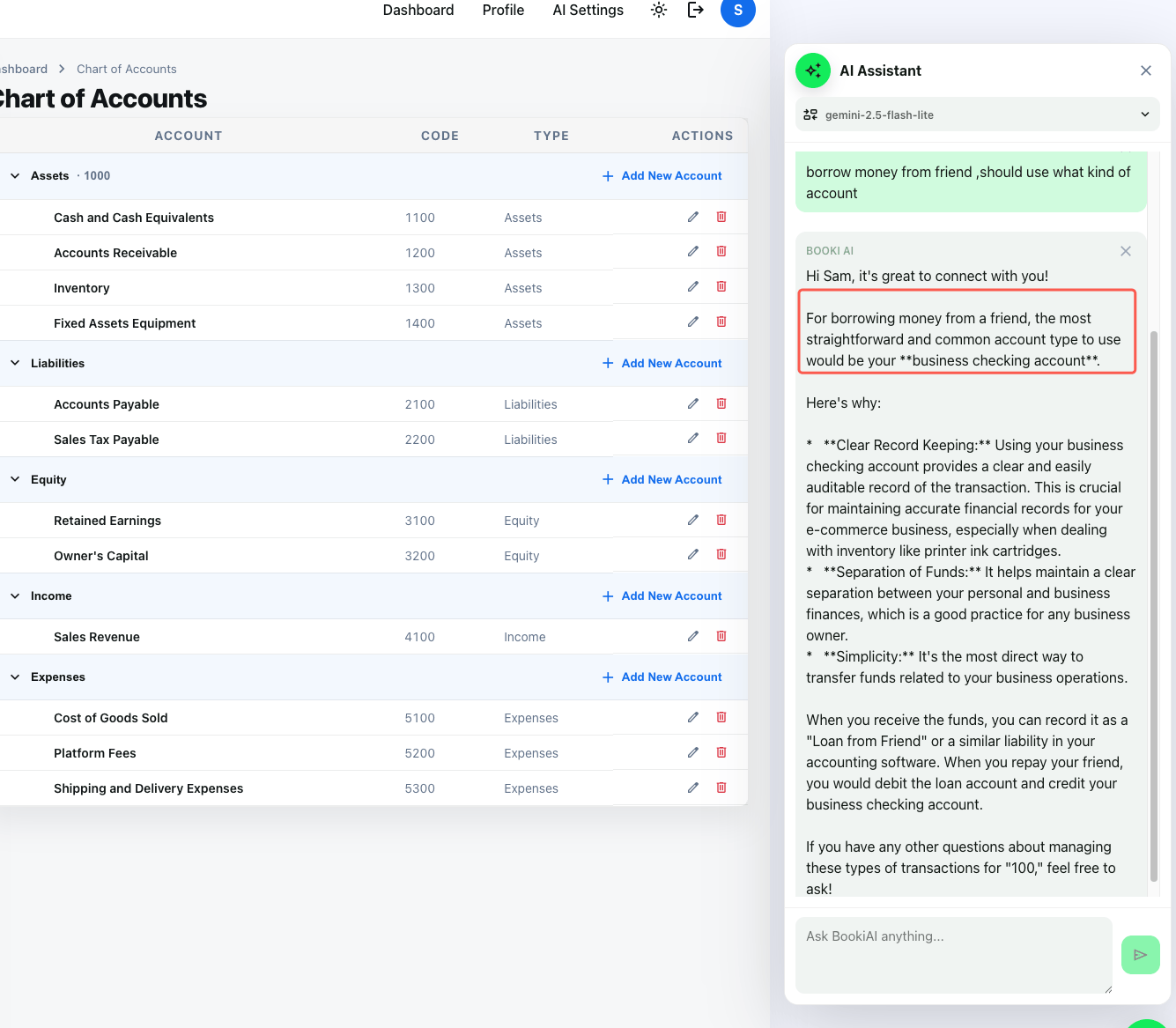
- Open the AI Suggestions toolbar, describe the business need, and get a proposed code/name/rationale.
- Approve to auto-create the account, then continue processing entries with the new code.
6. Next steps
- After configuring accounts, go to Accounts Transactions to review each account’s entries.