6.AI-Assisted Journal Entry
Let AI read your documents, pick accounts, and draft balanced entries. This section shows the flow and where screenshots belong.
Watch the walkthrough
Prefer the link? Open on YouTube.
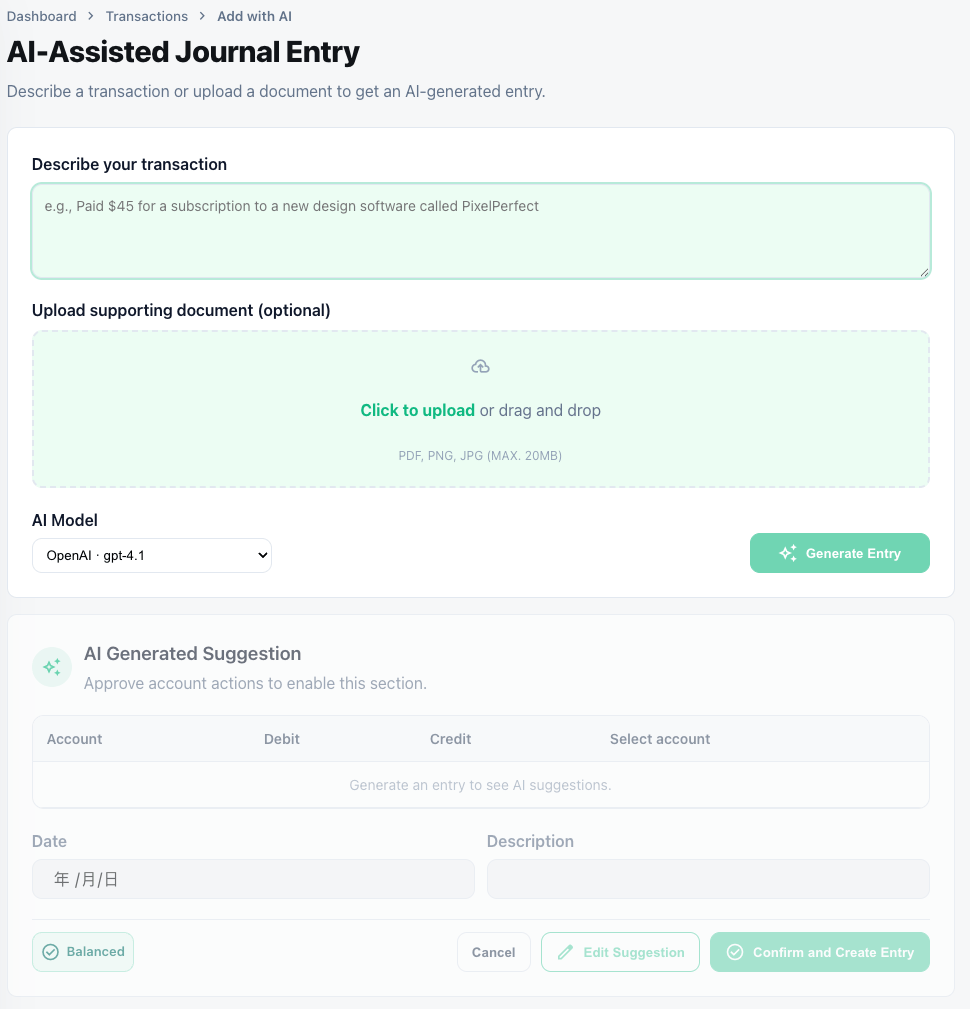
1. Upload documents
- Supported: JPG/PNG/PDF invoices, receipts, bills, bank statements.
- Use “Upload invoice/receipt” on the journal screen; you can attach multiple files.
- AI runs OCR, extracts supplier/date/amount/tax, and keeps files in the Attachments tab.
2. AI recognition & account selection
- AI maps extracted data to existing accounts; if missing, it suggests creating a new account with code/name/type.
- You approve or adjust the suggested account before it is added.
- A summary table shows extracted fields, proposed accounts, amounts, and rationale.
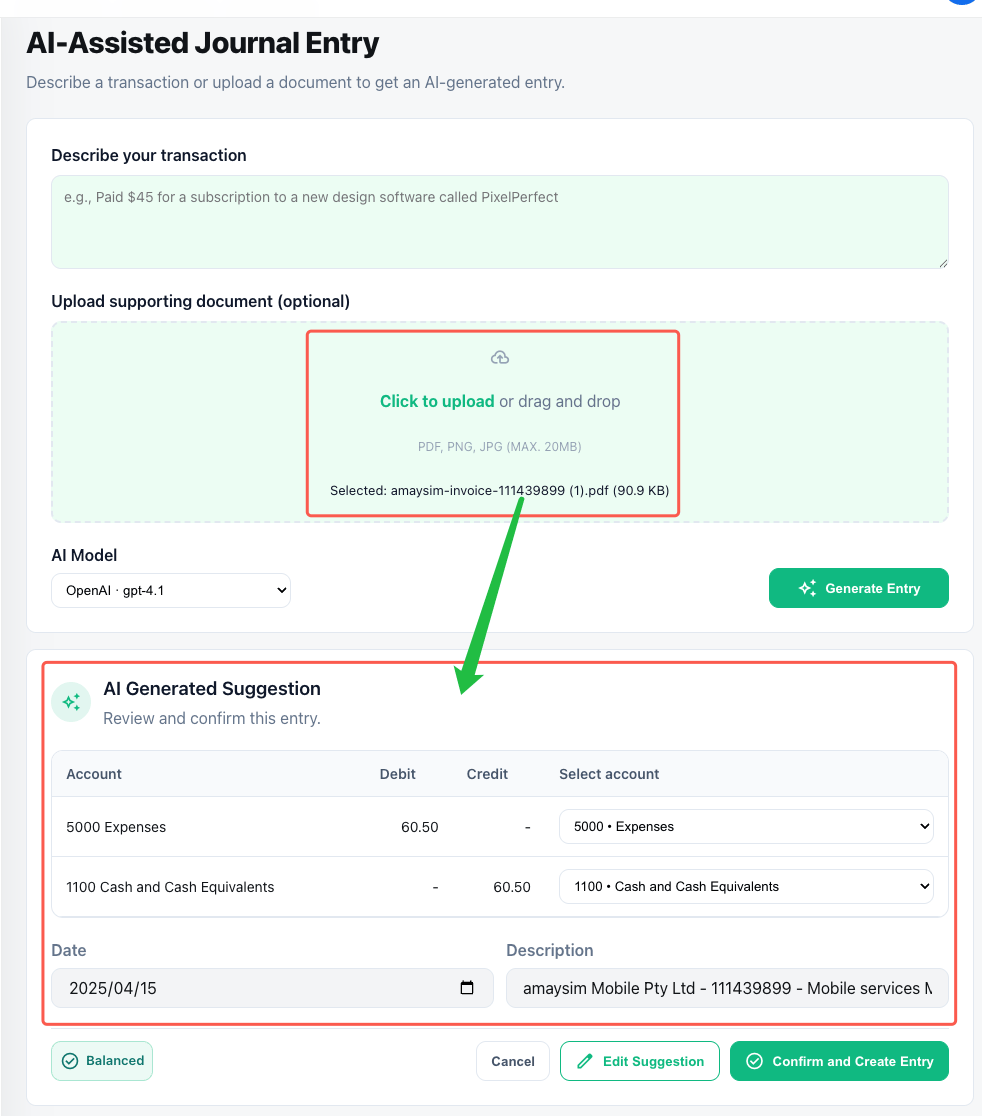
3. Guided entry creation
- AI pre-fills debit/credit lines; edit amounts, split lines, or add allocations.
- Attachments stay linked to each line for audit traceability.
- Use “Test recognition” to re-run OCR/LLM if the result needs improvement.
- Post the entry or save as Draft when ready.
4. Next steps
- Review created entries in Ledger Journal Entries.
- Adjust or expand your chart of accounts based on AI recommendations before processing more uploads.