4.Ledger Overview
This page explains what you see on the Ledger Overview screen, why each section exists, and where to add UI screenshots.
Watch the walkthrough
Prefer the link? Open on YouTube.
1. What this page is for
- Give every user a single place to scan ledger status: balances, storage usage, alerts, and quick actions.
- Separate operational ledgers from the system wallet ledger so billing and usage are transparent.
- Surface AI shortcuts for people who want auto-suggestions without digging into setup menus.
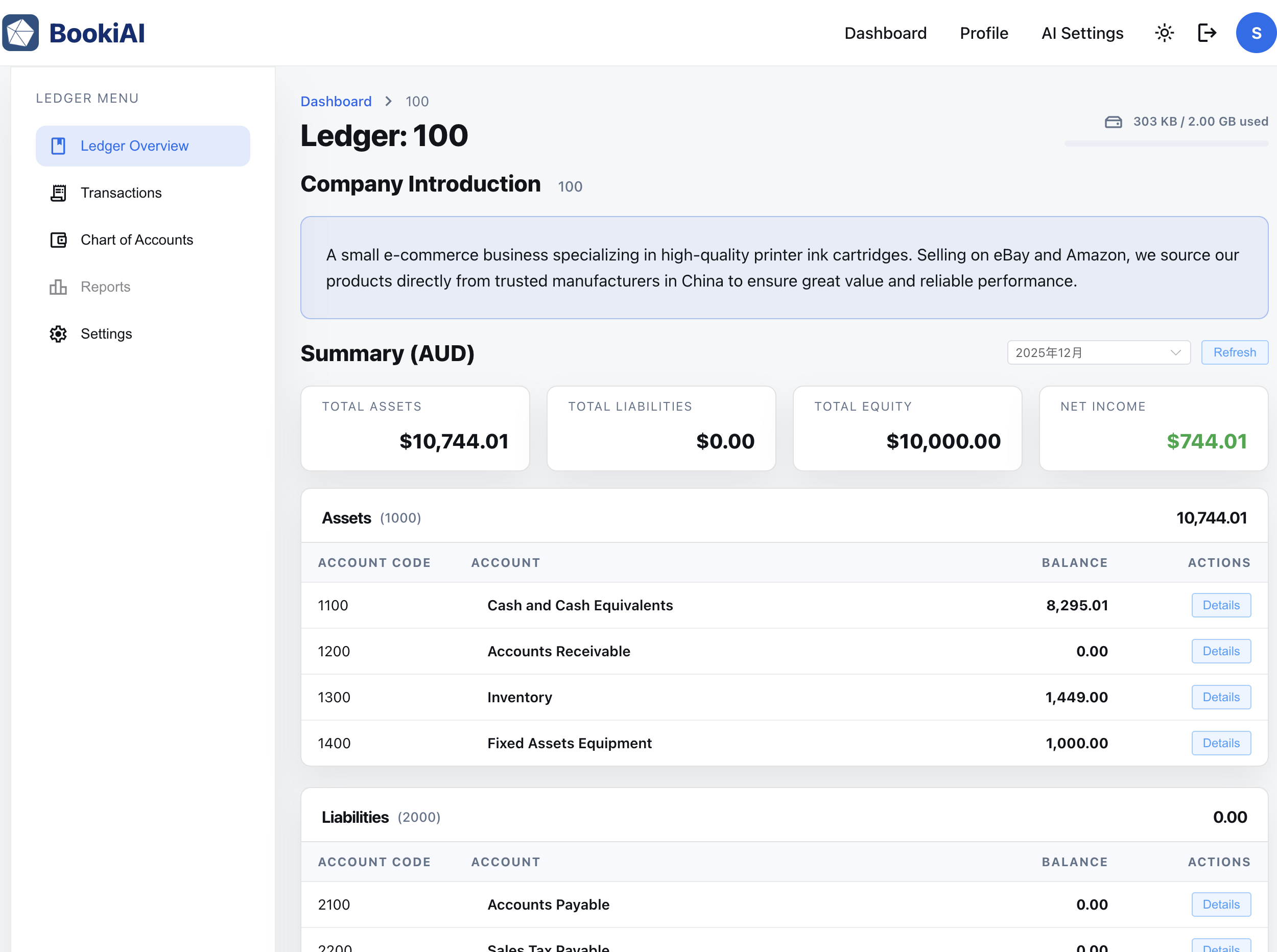
2. Sidebar navigation
- Shows the main areas: Overview, Transactions, Reports, Settings.
- Indicates which ledger you’re viewing and lets you switch ledgers quickly (system ledger is labeled “System”).
- Filter toggle to hide read-only or system ledgers when you only want active, editable books.
Sidebar menu items:
- Ledger Overview (this page)
- Transactions (Journal Entries List)
- Chart of Accounts
- Reports (not yet implemented)
- Settings (ledger-level settings)
3. Page header and company intro
- The top bar shows the ledger name on the left and a storage badge on the right (e.g., “620 MB of 1 GB used”).
- Storage may link to add-ons or expansion when you approach the cap.
- Beneath the header is a company intro card summarizing the business description provided during ledger setup.
4. Ledger Summary Card
- Cards are grouped into Balance Sheet (Assets / Liabilities / Equity) and P&L (Income / Expenses) so you can scan financial position vs. performance.
- Each card shows the ledger name and current total.
- Quick actions: open ledger, view AI overview, or jump to recent entries.
5. Account balance tables
- Below the cards, grouped tables list account codes (e.g., Cash 1010, Revenue 5000) with current balances under the right category.
- Expand/collapse arrows reveal child accounts; clicking a row opens that account’s detail view.
- Use this area to compare key balances at a glance, such as Accounts Receivable vs. Sales.
6. Next steps
- Go to “Ledger Journal Entries” to post or review transactions.
- Use the AI panel when you want a fresh Chart of Accounts recommendation or automated draft entries.
Next: Ledger Journal Entries