5.Ledger Journal Entries
See how to review journal entries, find the right lines with filters, and post new entries with the required support.
Watch the walkthrough
Prefer the link? Open on YouTube.
1. What this page is for
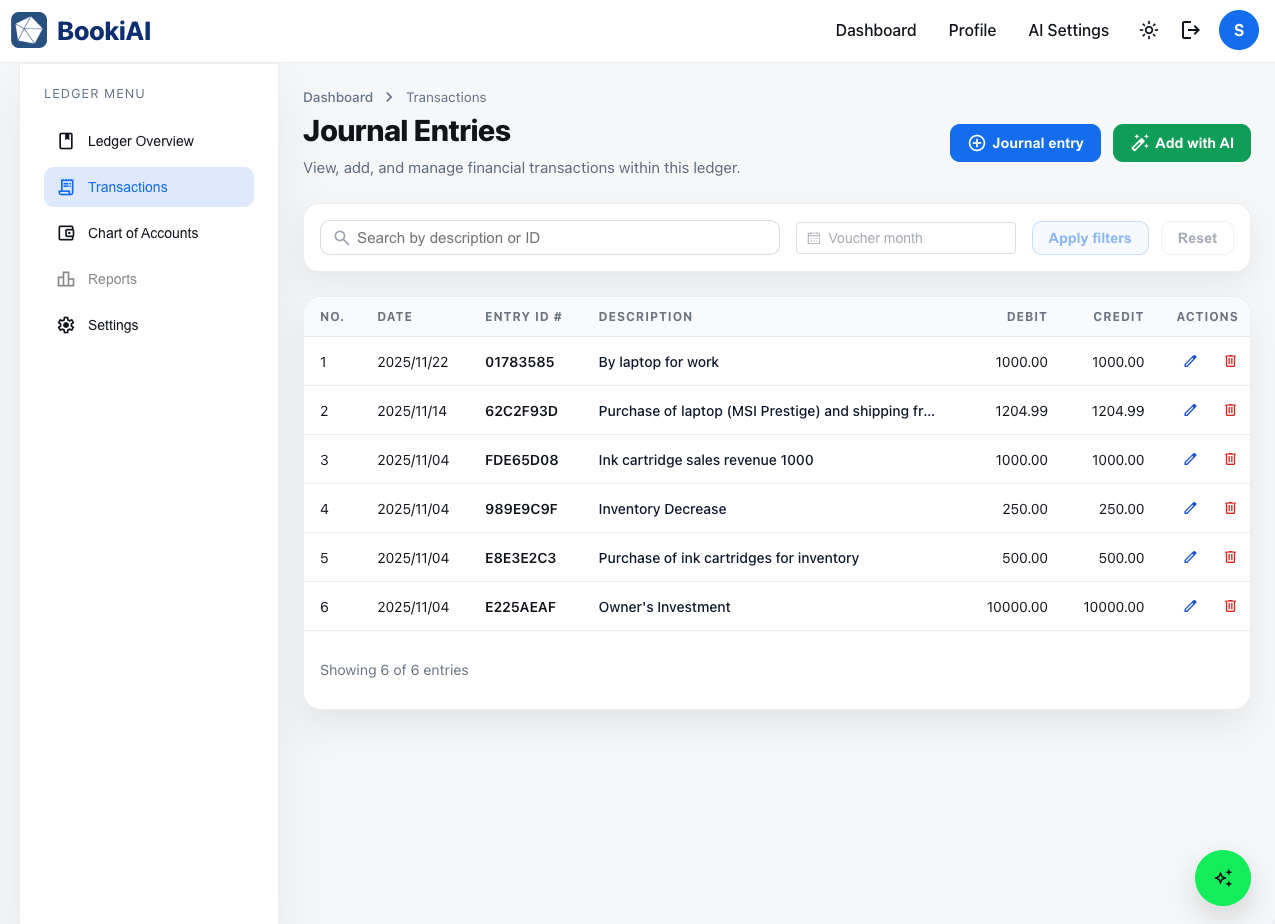
- One place to browse all journal entries for the selected ledger, check status, and keep supporting files attached.
- Supports filtering/search plus time-based counts and amount summaries.
- Top of page provides “New Journal Entry” and “AI-assisted Journal Entry” buttons for quick creation.
- Quick actions for posting, editing (if permitted), and previewing totals before period close.
2. Journal entries list
- Main table shows Date, Reference, Description, Debit/Credit totals, Status, and attachment indicator.
- Row actions: preview entry, edit (icon button), delete (icon button, subject to posting rules), attach files, or post.
- Reconciled/approval states are visible so you know what is pending.
3. Filters and search
- Filter by date range, account, status (draft/published), or tags.
- Search by reference number, description, or attachment name.
- Combine filters to isolate pending entries before close or entries hitting a specific account code.
4. Create a journal entry
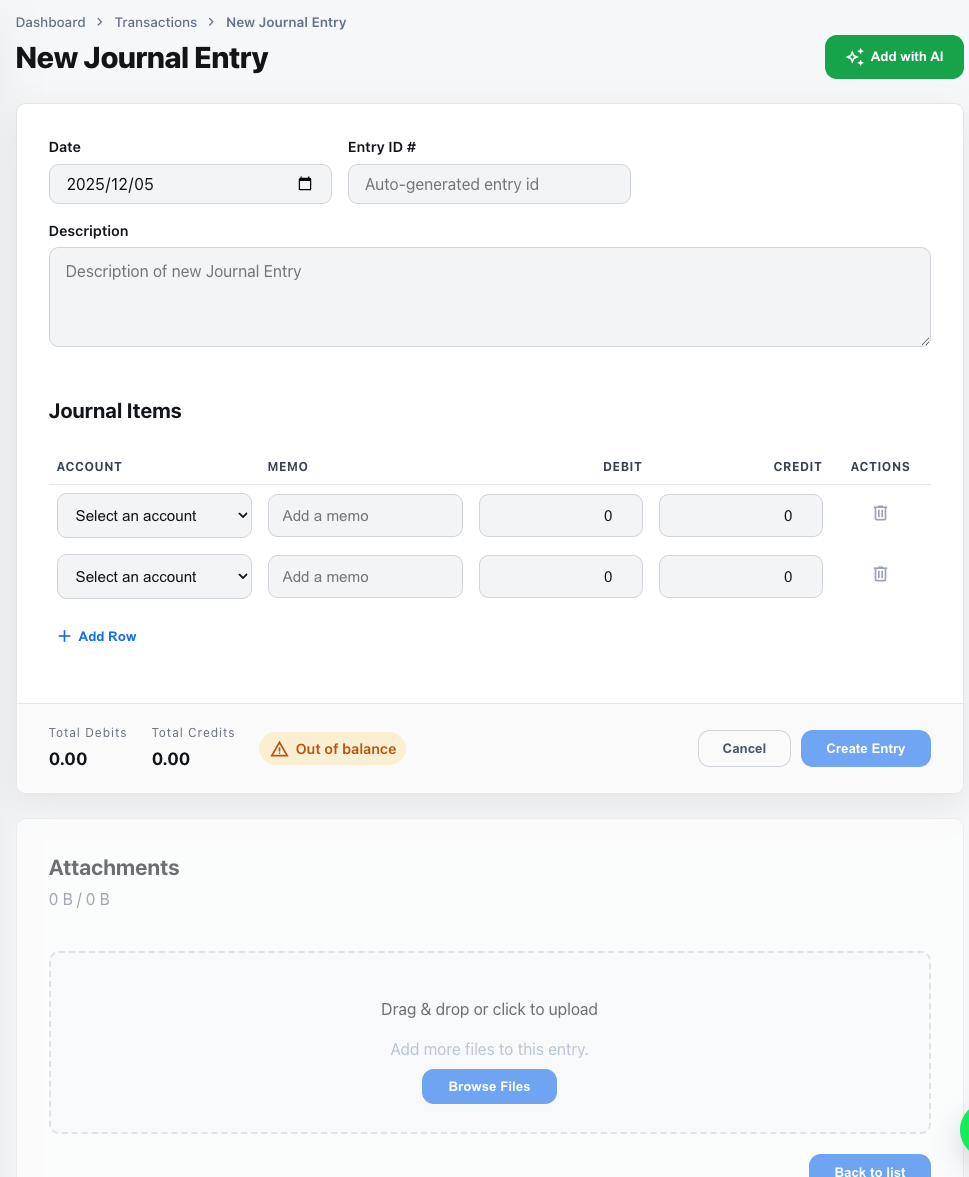
- Click “New Journal Entry” to open the entry form.
- Header: Date, Reference, Description, Currency, optional link to invoices.
- Lines: pick account, debit/credit amount, tax, attachments; confirm Debits = Credits.
- Save as Draft for review, or Post immediately once balanced.
5. Edit or delete a journal entry
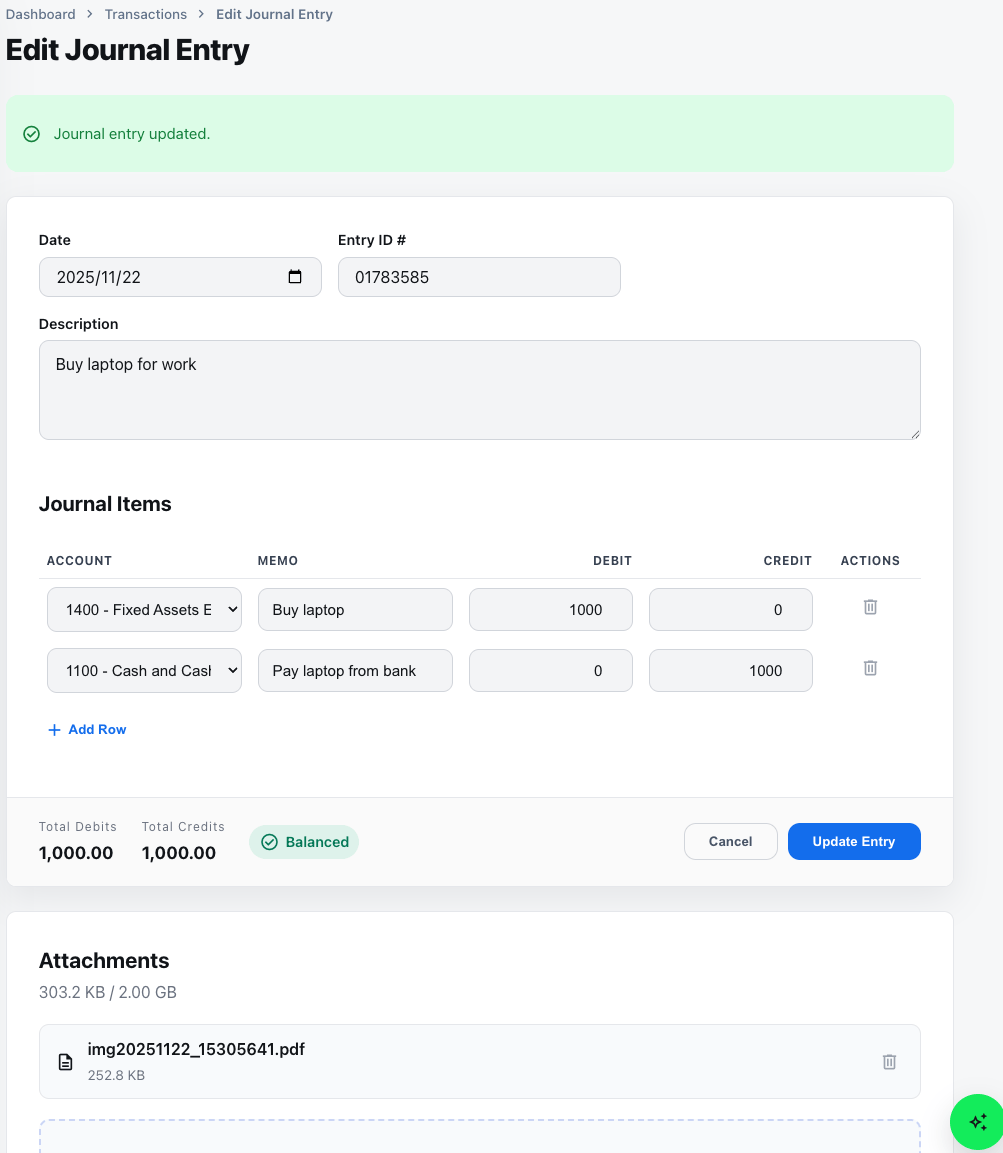
- Use the inline edit icon to open the journal entry edit view and update details.
- Use the inline delete icon to remove an entry (deletions follow posting rules).
6. Next steps
- Need drafting help? Switch to AI-assisted Journal Entry creation.