Ledger Overview
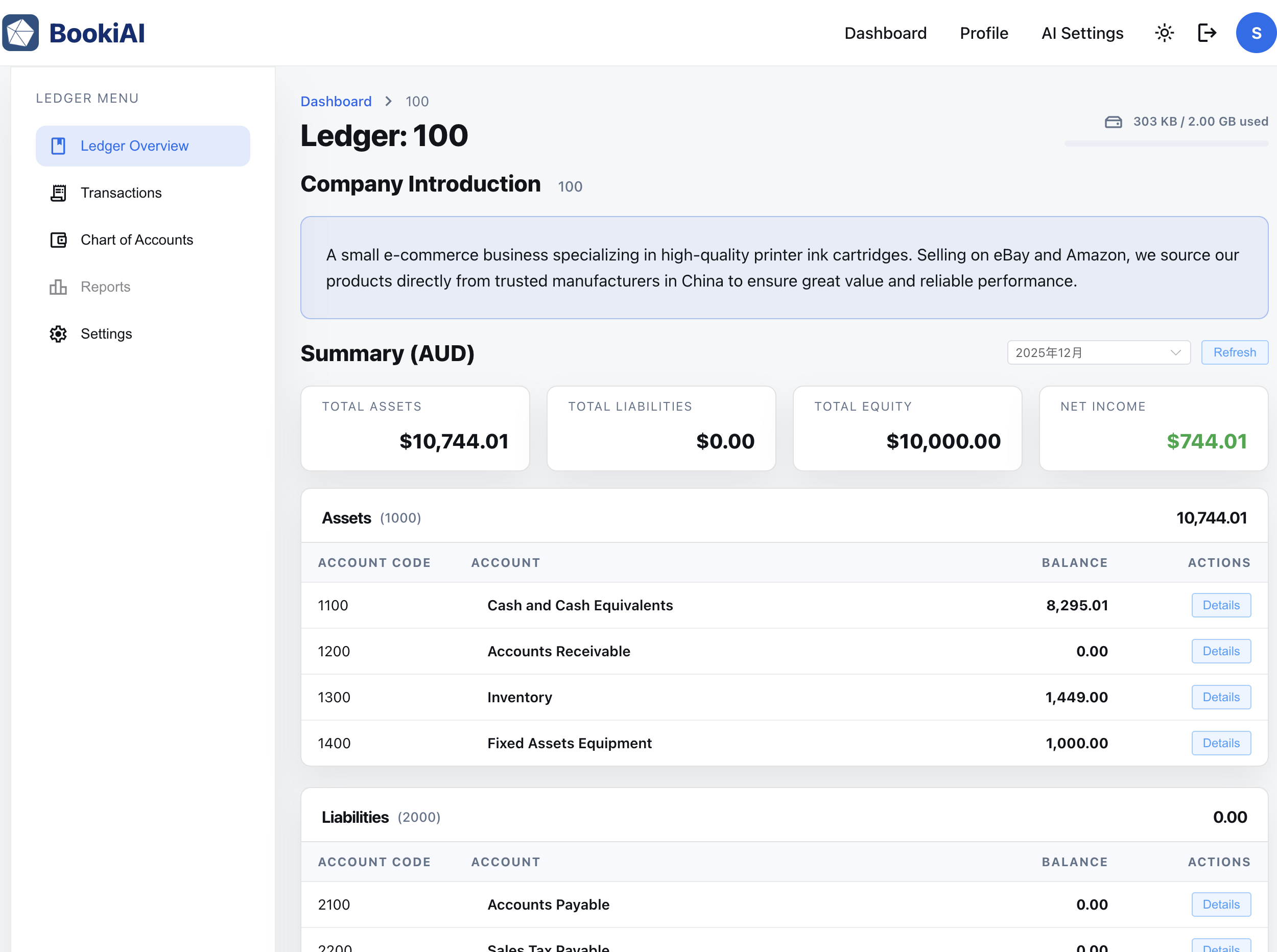
This page explains what you see on the Ledger Overview screen, why each section exists, and where to add UI screenshots.
1. What this page is for
- Give every user a single place to scan ledger status: balances, storage usage, alerts, and quick actions.
- Separate operational ledgers from the system wallet ledger so billing and usage are transparent.
- Surface AI shortcuts for people who want auto-suggestions without digging into setup menus.
2. Sidebar navigation
- Shows the main areas: Overview, Transactions, Reports, Settings.
- Indicates which ledger you’re viewing and lets you switch ledgers quickly (system ledger is labeled “System”).
- Filter toggle to hide read-only or system ledgers when you only want active, editable books.
Sidebar menu items:
- Ledger Overview (this page)
- Transactions (Journal Entries List)
- Chart of Accounts
- Reports (not yet implemented)
- Settings (ledger-level settings)
3. Page header and company intro
- The top bar shows the ledger name on the left and a storage badge on the right (e.g., “620 MB of 1 GB used”).
- Storage may link to add-ons or expansion when you approach the cap.
- Beneath the header is a company intro card summarizing the business description provided during ledger setup.
4. Ledger Summary Card
- Cards are grouped into Balance Sheet (Assets / Liabilities / Equity) and P&L (Income / Expenses) so you can scan financial position vs. performance.
- Each card shows the ledger name and current total.
- Quick actions: open ledger, view AI overview, or jump to recent entries.
5. Account balance tables
- Below the cards, grouped tables list account codes (e.g., Cash 1010, Revenue 5000) with current balances under the right category.
- Expand/collapse arrows reveal child accounts; clicking a row opens that account’s detail view.
- Use this area to compare key balances at a glance, such as Accounts Receivable vs. Sales.
6. Next steps
- Go to “Ledger Journal Entries” to post or review transactions.
- Use the AI panel when you want a fresh Chart of Accounts recommendation or automated draft entries.
Next: Ledger Journal Entries